Appendix C: Dealing with errors
Errors are an inherent part of programming. Everyone runs into errors in programming: from the most expert programmers, to the person writing their very first program. They are not a sign of deficiency; they are an expected part of the process. Indeed, programming can sometimes feel like the journey from one error message to the next!
Strype is specifically designed to eliminate some errors that you can get from Python, such as mismatched brackets, or incorrect indentation. But nevertheless you will encounter errors in Strype. Each error arises from a unique situation so we cannot predict exactly how to fix each and every error, but this appendix is a brief guide on how to deal with errors.
Errors can occur while you are editing the program, or they may occur when you click Run. If you are in the middle of editing you may want to ignore some errors until you believe you have finished. For example, if you create an if frame and don’t fill in the condition, it will have an error that the condition is empty, but that’s expected and you may want to ignore the error until you are ready to fill in the condition.
Errors that occur during editing will prevent you from running the program and you will need to fix them first. Other errors may only occur when that particular piece of code is executed — or the error might even only happen based on what happened earlier in that particular execution of the code.
C.1. What to do when you get an error
First: stay calm. Errors are one of the ways in which the programming system communicates back to you, to tell you it has encountered a problem. Your role is to take that error and work out how to resolve it.
The next thing to do, which may sound obvious, is to read the error message. Sometimes error messages can be confusing, or full of jargon, but some people new to programming get scared of trying to read the message at all. It will be much harder to fix if you don’t know what’s wrong! But sometimes the error doesn’t make sense, or will only make sense when you understand the problem.
 The error message should pop-up in a bubble when it occurs. If you want to see it again later, you can move your mouse over the little exclamation mark (!) triangle on the right of the frame where the error occurred. Failing that, you can try running the program to try to make the error re-appear.
Check the code for spelling mistakes. It is easy to write "prnit" where you meant "print". This includes capitalisation. If you called your variable "myString" and then try to use it with "mystring", Python counts this as two different things and you’ll get an error.
A further step which can help is to compare the code with an error to similar code without an error. For example, you might compare your code to code in this book (which should all be error free!), or to programs that you have previously written that worked. Pay close attention to punctuation like speech marks or brackets; often code errors arise from missing vital punctuation that is easy to overlook.
Finally, some errors, especially in larger programs, can actually be caused by mistakes earlier in the program. If it doesn’t make sense where the error is, look earlier in the program for possible related mistakes. Often the relation is the variables that are used on the line with the error.
C.2. Deciphering errors: example 1
Let’s look at an example of deciphering an error. You might want to print the text Hello on the screen, so you write this:

At first glance, this looks reasonable. There’s no spelling mistakes here. But if we click Run we’ll get this error:
NameError: name 'Hello' is not defined
That’s quite confusing. But let’s not just disregard it. Let’s see what it’s trying to say. It’s saying the name Hello is not defined. But that’s stupid; Hello is not meant to be a name. Maybe that gives you a hint, but maybe it’s not enough. So let’s compare to some similar, working code. Here’s some code from earlier in the book:

Let’s compare very carefully between our code and that code. Do you see the difference?
It’s the quote characters around the string. We’re missing the quotes! And with that, the error message makes more sense; because we didn’t have the quotes, Python thought Hello is the name of a variable and didn’t find such a variable. We can add the quotes to fix the error:

If you have some text in Strype where you forgot the quotes, the easiest way to add them is to first select the text in question (either with the mouse, or shift and left/right keys) then type a quote character. This will surround the selected text in quotes.
C.3. Deciphering errors: example 2
Let’s look at another example, on a slightly longer program. This program is intended to time how long the user took to press enter:
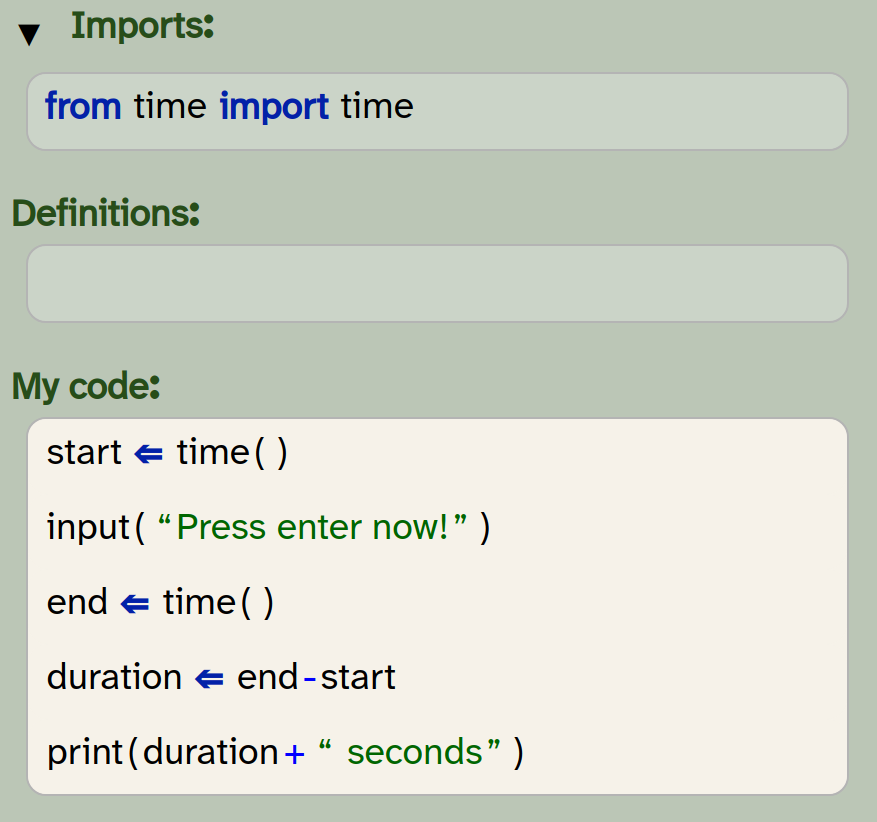
If you run this (and press enter!) you’ll get an error on the last line which says:
TypeError: unsupported operand type(s) for +: 'float' and 'str'
You may well not know the word operand (we’ll define it for you in a moment, but for now let’s assume we don’t understand it). If you’ve reached chapter 2 you’ll know that types refer to kinds of data, and you may recognise "float" and "str" as types. It’s easy to mis-understand what this part means:
for +:
That just looks like a mistaken mess. But read carefully; it is saying the problems are the types for the "+", meaning the + in our code. So it’s saying there is a type error on the +. The two types involved are float and str, and it doesn’t like that.
Let’s find some similar working code from earlier in the book. Here’s some code from chapter 5:
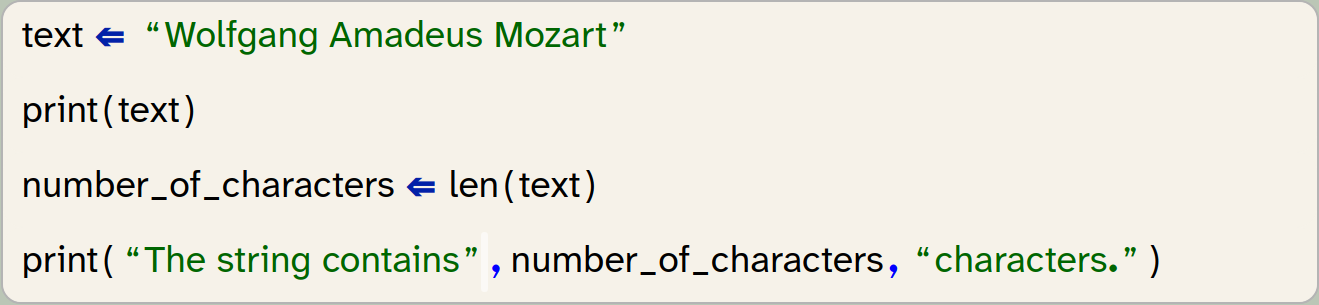
That doesn’t use plus for this kind of mixed printing, it uses comma. So that’s one fix, to change to:

Another fix would be to convert the float into str, using the str function:

It is often the case that there are multiple ways to solve an error in programming. In this case, both work just fine.
Finally, what is an operand? Well, an operand is something next to an operator; in the code 1+2, the operator is the plus, and the operands are 1 and 2.
C.4. Deciphering errors: example 3
Here’s another short program which is intended to build up a list of numbers:
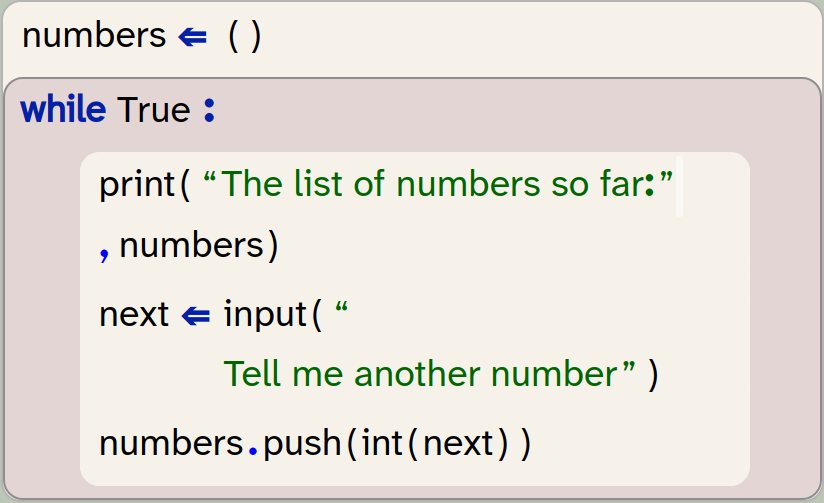
If you run it, it will start fine. Then when you enter a number you’ll get an error on the last line that says:
AttributeError: 'tuple' object has no attribute 'push'
So once again, you might not understand some of the terminology. If you are early in the book you might not know the term tuple (which we cover in chapter 8). That doesn’t seem to relate to your program at all! It’s complaining that it doesn’t know about push — we can see push in our code, at least. So it’s not finding push. But the line with the error looks fine no matter how much we stare at it.
Let’s look back up the code at the variables involved. The variable "next" is assigned on the line before. That line looks okay; it is a function call, it has quotes around the string. So let’s look at the variable "numbers" instead. That is assigned before the start of the loop. Can you see a problem there?
If you consult the lists chapter you’ll find that lists use square brackets not round brackets. So that mistake actually caused an error several lines later! It just didn’t matter before that point that it wasn’t a list. So in this case we fix our error by editing elsewhere.
C.5. Welcome to the wonderful world of errors
When you program, you will encounter many more errors than these. We ourselves often encounter new errors we haven’t seen before, and we make use of similar techniques to find them. So remember:
-
Stay calm
-
Read the error carefully for parts you do understand (and don’t worry if you don’t understand it all)
-
Check the line with the error for obvious mistakes, especially spelling mistakes or punctuation problems.
-
Compare the code to other code which you know works; what are the differences and how might they explain the error?
-
Look at earlier code for possible causes, especially lines which involve the same variables as the line with the error.
-
You can also ask a friend, ask the teacher, or try searching the Internet for help.