Appendix B: Working with Strype - Tips and tricks
B.1. Display options
Pane layout
Strype offers four different layout options. These will determine how the text console and graphics world are displayed in the interface.
By default, the graphics and text output areas are displayed in a tabbed pane, allowing viewing of one of them at a time. Using the other options, these two output areas may be displayed at the same time.
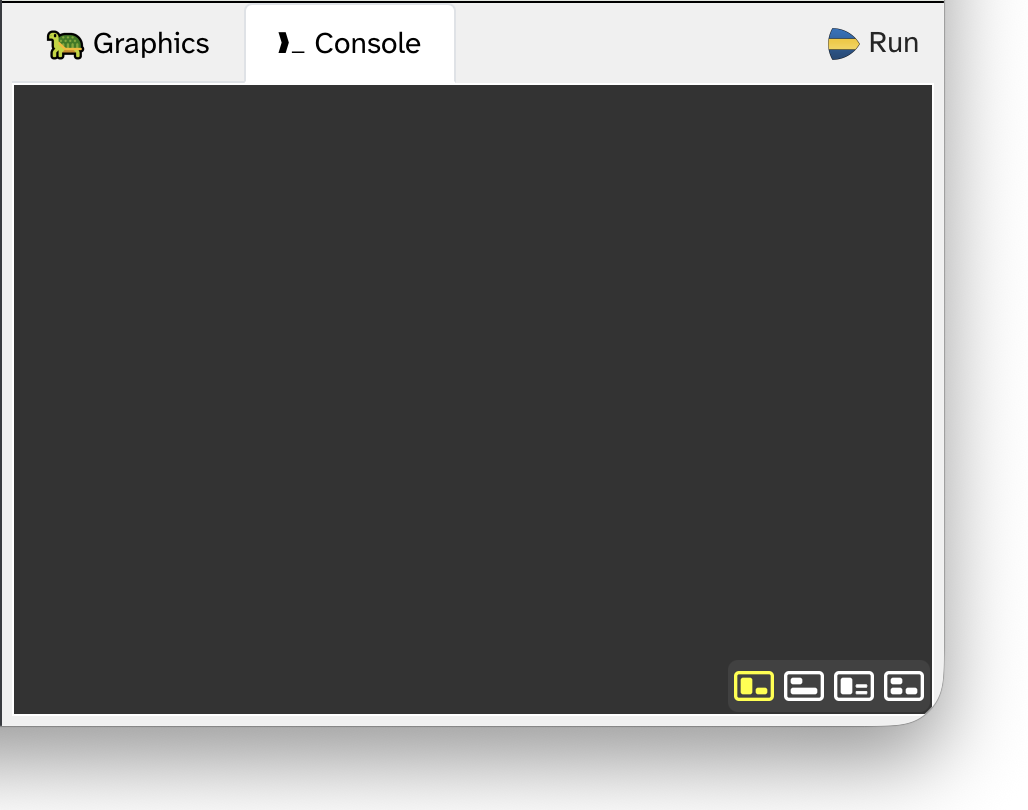
The options can be selected using the icons in the bottom right corner of the main Strype window (Figure B.1). Note that the icons are only visible when hovering over the output area.
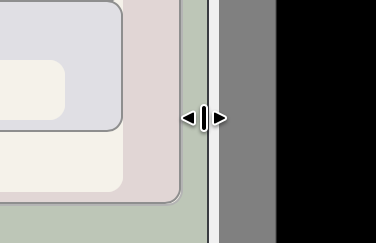
The size of the output areas can be adjusted by dragging the horizontal or vertical divider line around the console (Figure B.2).
The interface layout is saved with the project. When saving and sharing a project, the interface will be restored to the same arrangement as it was when the project was saved.
Folding functions and classes
Functions may be folded in to streamline how they are displayed in the editor. This is achieved by using the folding control in the top right of the function frame (Figure B.3). Note that this control is only visible when the mouse hovers over the frame, or when the function is folded.

Folding a function cycles through three states:
-
All code
-
Header only
-
Header and comment
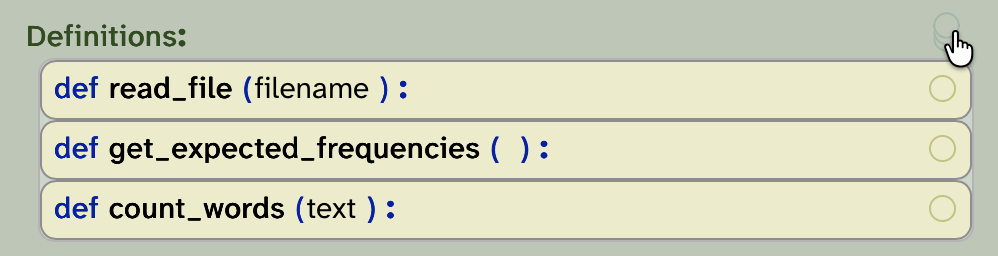
A global folding control is available at the top of the definitions area (Figure B.4). Using this control, all functions can be folded into the same state.
In addition to folding of functions, folding is also available for classes (Figure B.5).
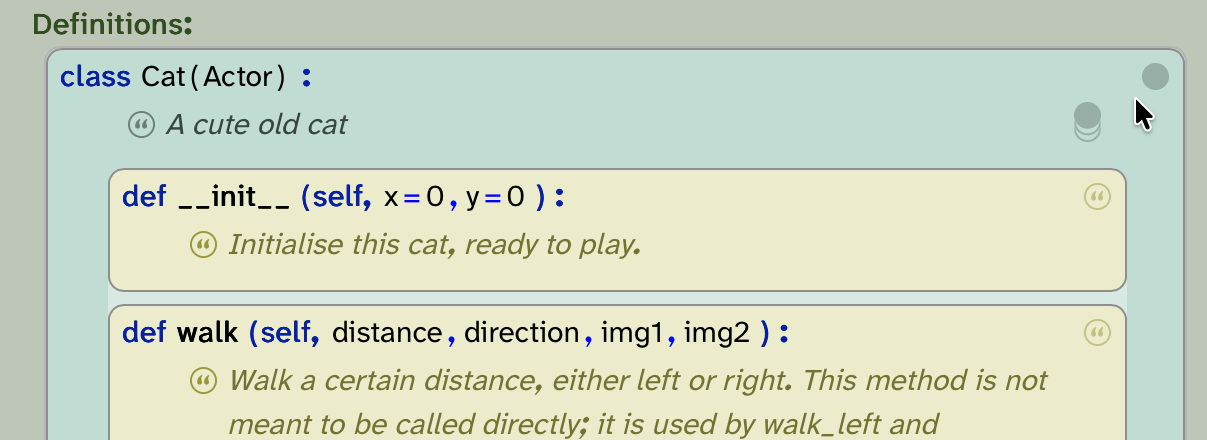
For classes, two folding controls are available: one for folding all methods within the class, and one for folding the class itself. By making good use of these options, classes can be either entirely collapsed, or they can be displayed with a listing of their method headers (with or without documentation). The best way to understand these options is to try them out.
Making good use of Strype’s folding functions can help navigating a project and concentrating on the segments of code currently under construction.
Freezing functions and classes
In addition to folding, functions and classes can be frozen. Freezing is available via the right-click context menu. When a function of class frame is frozen, it is displayed with a small snowflake icon in its top right corner (Figure B.6).
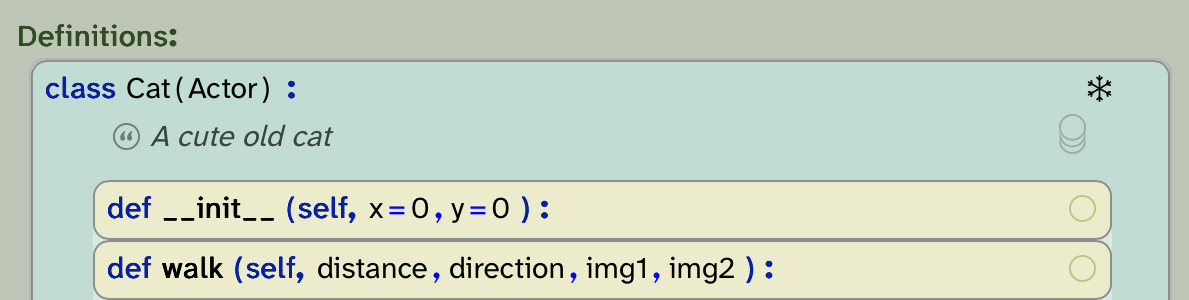
A frame is typically frozen in a project to indicate to the programmer that this part of the program is finished in its implementation, and is not intended to be further modified.
A typical case is a project provided to students with some helper functions implemented, which the students are expected to use, but not modify. Freezing these functions sends the signal that students are not expected to modify or understand the implementations, but can use them as library functions.
When frames are frozen, the folding control toggles only between the two header options (with or without comment). The implementation will not be displayed.
Note that freezing sends just a hint to the student how they are expected to use this code. It does not prevent the function from being modified. Any user can, at any time, unfreeze a function to study or modify its implementation. Thus, freezing provides an aid to viewing and using a project, not a security feature.
B.2. Project and file storage
Open and save
You can save Strype programs to your local filesystem, or to a cloud storage system. Currently, two cloud stores are supported: Google Drive and Microsoft OneDrive.
Strype does not manage or access your user data on those platforms. To use a could drive, you must have an account with one of those providers and access it in the usual manner. Strype never sees your account details or password and stores no user data.
File access: Local device vs cloud
Saving systems to your local computer may be easier, since it does not require an account with a cloud provider. However, if you would like to work on the same project across different computers (for example, in a school lab), then saving to the cloud can be more convenient.
Another reason to save your project to the cloud is data file access: For security reasons, web browsers are not allowed to access your local filesystem (without an explicit file open dialogue). Because of this, your Strype programs cannot read data files from your local file store, and programs that attempt to access local files will fail.
To work with your own data files, store your project in a could file system, and then place the data file into the same folder as your program. The program can then access the file without a full path (using just the file name).
B.3. Export / import
Opening Python programs
You can open many standard Python programs directly from within Strype. To do so, just use the standard 'Open' function and select a Python source file (.py suffix).
Not all Python programs can be opened. Firstly, Strype will attempt to re-order code in the file to move all imports to the top, and all definitions above any free-standing code. This is necessary to conform to Strype’s restrictions. Secondly, some (rarely used, advanced) Python constructs are not supported, and programs using them cannot be opened. The great majority of Python programs, however, will work with Strype.
Saving Python programs
Strype programs can be saved in standard Python format using the "Convert to Python file" function from the Strype menu. The resulting program will run in a standard Python runtime, as long as it does not use any of the Strype-specific libraries (imports starting with strype.).
Pasting python code
You can paste standard, text-based Python code directly into the Strype editor. For this to work, you should copy complete Python statements (one or more). Pasting will fail if the paste buffer does not hold complete statements.
Download as image
A selection of Strype frames can be downloaded to your local file system as a PNG image. This can be useful for creating documents (e.g. teaching material) including Strype code snippets.
To do so, select the desired frames, then use "Download as image" from the frame’s context menu. The image will be downloaded to your default browser download location.
Similarly, you can download an image of the graphics output or text console via a right-click menu in the output area.
Project sharing
A copy of an existing program can be made available to others. This can be useful, for example, to make a starter project available to students, or to give a copy of your program to a friend. (The book projects in this book are make available in this manner.)
To share your project, use the "Share" function from Strype’s menu.
Two different sharing options are available:
Cloud link: To use a cloud link, your project must be saved in a cloud storage system (Google Drive or OneDrive), and it must be in a saved state. The cloud link dialogue will give you a link which you can then send to others (vie email, a web page, or any other means). Any user who clicks on the link will be taken to Strype, with a copy of your project loaded. They can then save their copy to their own storage; this will not affect your copy.
Cloud link provides a live copy: If you make and save changes to your program after sending the link, other users will see those changes when they later click the link.
Snapshot link: A snapshot link encodes the entire Strype program in a URL. Clicking this option places this link into your paste buffer, ready to be pasted elsewhere. The advantage over the cloud link is that no cloud storage is needed.
The link is static: it encodes the program at that moment; later changes will not affect the link. Note: Most browsers have a maximum URL length. This option will not work if the program is very long. Therefore, programs including images or sounds will often not work with this option (the image or sound file makes the program too big). For those programs, use a cloud link.
B.4. Other
Local language setting
Strype’s interface language can be changed using an option in the Strype menu. Currently, a limited set of languages are available.
If you are interested to contribute a new translation to a language you speak, please contact us at team@strype.org. We welcome volunteer contributions of interface translations.
The Strype Teachers' Lounge
The Strype Teachers' Lounge provides a community site for teachers who are interested in Strype. If you are a teacher at a school, you can request access. The forum provides discussion and resources that can help your teaching (project ideas, worksheets, etc.). A link to the Teachers' Lounge is available on the Strype website at strype.org.