Chapter 8. Finishing our game
In this last chapter, we discuss some ideas of functionality you could add to your game. These do not need to be done in this order, or indeed at all. You are very much invited to invent your own improvements and try to add those as well. You might like to treat the following sections as suggestions rather than as strict recipes you have to follow. If you want to compare your code to ours, you can look at yellow-fish-v7, which is the last of the yellow-fish projects we provide. It contains implementations of some of the functionality suggested here.
8.1. Adding sound
Currently, our game is silent. One obvious addition is to add sound effects. This is fairly straight forward:
-
To use sound in our project, we need to use the
strype.soundlibrary. We can import the entire library, using the*symbol, as we have done with thestrype.graphicslibrary. Make sure this library is imported. -
We can either copy sound files from our file system into our program, or we can record sounds directly in Strype.
-
We can then use the
playmethod from theSoundclass to play the sound file.
Let us start by recording our own sound – this is the easiest option. Strype has a built-in sound recorder that lets you produce your own sound effects easily. Insert an assignment frame and place the cursor into the value slot on the right-hand side:

In the help area at the right of the Strype window, you will see the 'Record sound' option. You can click on it, or use the space s key sequence to activate it. Try this out.
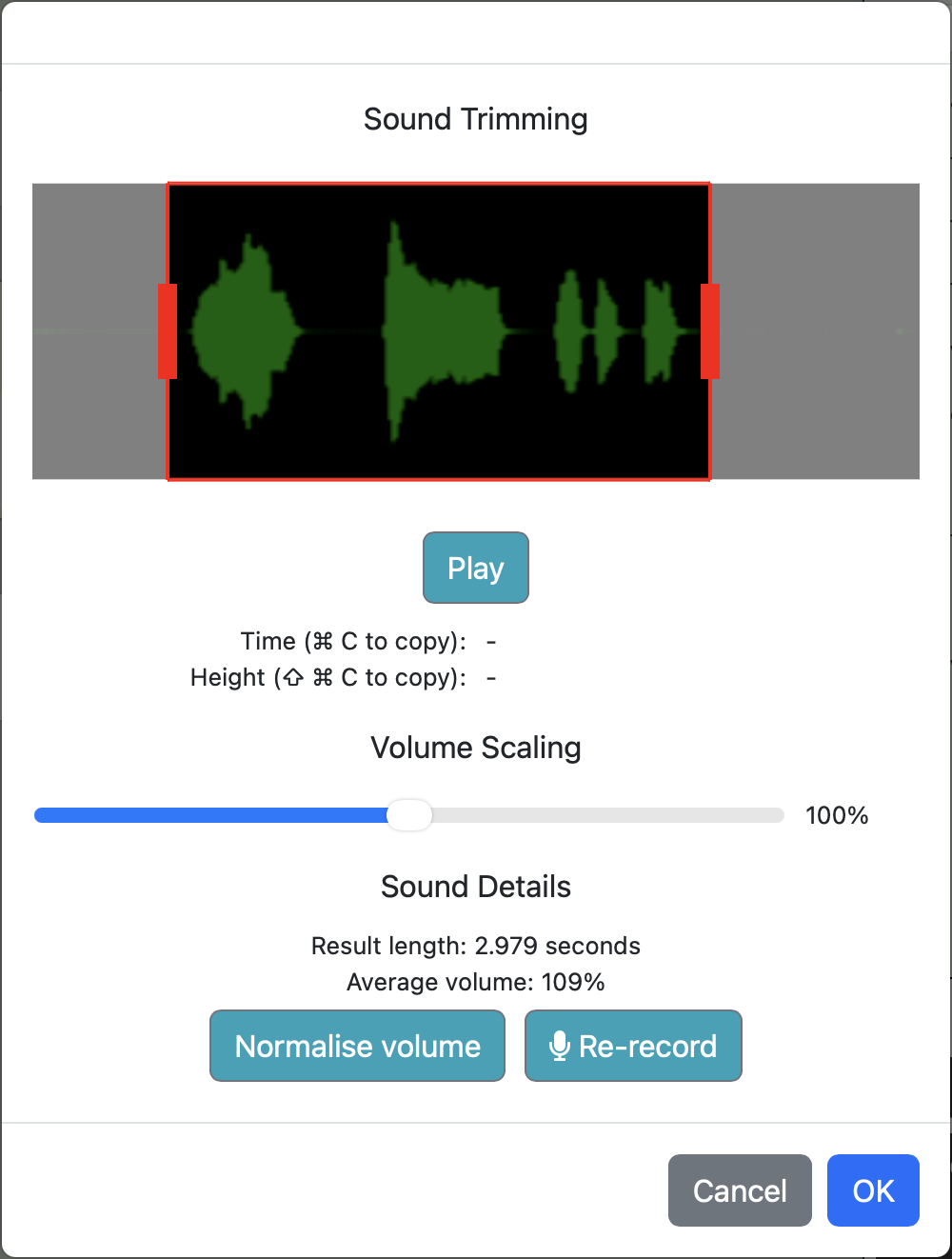
You will see first a sound recorder and, after recording your sound, a simple sound editor (Figure 8.16). In this editor, you can trim the sound (remove unwanted parts at the start and end) by using the red handles, and you can adjust the volume. Experiment with this.
Exercise 8.1 Find the place in your program where the fish eats a shrimp. Add an assignment frame there for a sound to be played at that point.
Exercise 8.2 Place the cursor into the value slot of this assignment and activate the sound recorder to record and store a sound. This is the sound that should be played when a shrimp is eaten. Change, trim, check, re-record the sound until you are happy with it. Give the variable an appropriate name.
Now that we have a sound recorded, we can play it:

Exercise 8.3 Enter the code shown above into your own program. Try it out.
Exercise 8.4 Also play a sound when the shark eats the fish.
If a sound is only used once in a program, we can also play it without assigning it to a variable. For this, we create a function call frame, record the sound directly into that frame, and then call play on the sound literal:

Either way is fine.
Another option is to find and copy sound effects from the internet. Some sounds are provided with the Strype projects, and you can find libraries of free sound effects by doing a web search. To use those sounds, download them to your own computer and then copy/paste them into your program, just like you did with images.
If you would like to explore this, do the following exercises.
Exercise 8.5 Add ready-made sounds to your program. With the book projects in Strype you can find the sounds we have used for our own version of the game. You can copy them from there. Or you can find some more sounds in the Material section of the book website.
Exercise 8.6 Search for free sound effects on the internet. Download one to your computer, copy it, and then paste it into your own program. Sound file formats that work include MP3 and WAV format files.
8.2. Game over
At the moment, the game just runs on when the fish is caught. Implement a proper end to your game.
Exercise 8.7 Add a game-over message to your game. You could do that by creating an actor that has a "Game Over" image as its actor image, at the time when it should be shown. Or you could investigate using the show_text function from strype.graphics.
Exercise 8.8 Stop the execution of the game when the game is over. (You can do this using the stop() function from the graphics library.)
Exercise 8.9 As an advanced exercise, you could also end the game when the player has eaten all the shrimp. This requires using the len() function to check the length of a list, which we have not discussed yet, so do this exercise only if you feel adventurous and are happy to look ahead and find out about this on your own. The idea is to put up a "You win" sign (and maybe play a sound) when all the shrimp are gone. You can check this by using a call to get_actors("shrimp") to get a list of all shrimps, and then checking whether the length of this list is zero.
8.3. Random turns
Winning the game is still quite easy. This is partly because the shark swims in a very predictable way: when it is not at the edge of the world, it just swims straight. We can make it a bit more interesting if we make the shark swim more randomly.
We can use randomness here in two ways: we can make the shark turn at random times, and turn by a random amount. Let’s start with the second part of this: turning by a random amount. This is quite straight forward. We can use the shark’s turn method, and then use a call to the random function for the actual parameter of the degree to turn. For example

will make the shark turn a random angle, between -45 and 45 degrees.
Exercise 8.10 Add code to your program to make the shark turn a random amount at each step.
When you test this version, you will notice that it makes the shark appear too nervous. The constant turning makes it flick back and forth – it does not look good. So our next step is to make it turn less often. Let’s say, at every step we want a 10% chance of turning, and in 90% of the steps we just continue straight. How can we do this?
Exercise 8.11 How can you use a random number to express a 10% chance? Describe at least two different ways.
One way to express a 10% chance is to generate a random number between 0 and 99, and then look at the number. There is an exactly 10% chance that this number is less than 10.
In Python, we can use the < operator to test whether one number is less than another one. For example number < 20 returns True if the value in the variable number is less than 20. (Again, see Appendix D: Python operators for a full list of operators.)
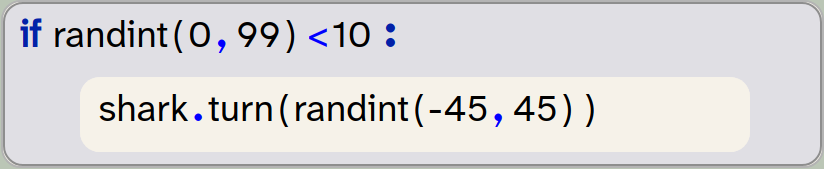
This means that the expression randint(0, 99) < 10 will be True exactly 10% of the time. By using this expression as the condition in an if-statement, we can make the turn happen in 10% of the steps:
Exercise 8.12 Add this improvement to your code: make the shark turn with a 10% probability. Experiment with different values for the chance and the turn until you are happy with the movement.
8.4. Keeping score
Another possible addition is to keep a score. We could, for example, award 20 points for every shrimp eaten. Doing this involves creating a variable for the score, initialising it to zero, and then incrementing it by 20 every time a shrimp is eaten.
To start, you can create the variable and initialise it to zero:

The type of the variable will be int (a whole number), and you can add to it every time points should be awarded:

Exercise 8.13 Add a variable for the score. Initialise it to zero.
Exercise 8.14 Increment your score variable every time the fish eats a shrimp.
Exercise 8.15 Show the score on screen by using the say_for method of the fish. Every time the score changes, get the fish to say the current score for one second.
The exercise suggested above shows your score only temporarily. An alternative would be to display the score permanently on screen. If you want to do this, look at the show_text() function in the graphics library – it lets you write something onto the world background.
8.5. Other extensions
Many more extensions to this game are possible. The following exercises suggest some ideas. We will not discuss these here, but leave it up to you to work these out. Some of them are advanced exercises that require you to look ahead and find out some things for yourself.
Exercise 8.16 Make new shrimp appear, either every time a shrimp is eaten, or at random intervals.
Exercise 8.17 Change the fish movement so that it moves forward only when the up-arrow key is pressed.
Exercise 8.18 Make the game get more difficult over time by slowly increasing the shark’s speed.
Exercise 8.19 Turn the game into a two-player game by introducing a second fish.
There is much to discover and learn – and fun to be had – if you invent and implement your own ideas.
8.6. Summary
In this chapter we have suggested some more functionality which you can add to your game. One idea was to add sound, and we have discussed how to do this.
We did not introduce new concepts in this chapter. Instead, the ideas discussed here give you a chance to apply and practice everything you have learned before.
The programming concepts and practices you have learned in this book have put you in a position to progress well with further projects if you choose to do so. You should now be able to write a wide variety of programs, and to learn and study more advanced topics of programming to improve your skills further.
If you want to continue learning to program with Strype, you are now ready to move on to Creative Python Programming with Strype, Volume 2. In that book, you will learn how to write programs that process large amounts of data.
Wherever you choose to go next with your programming ideas, most of all: have fun.

Smoke
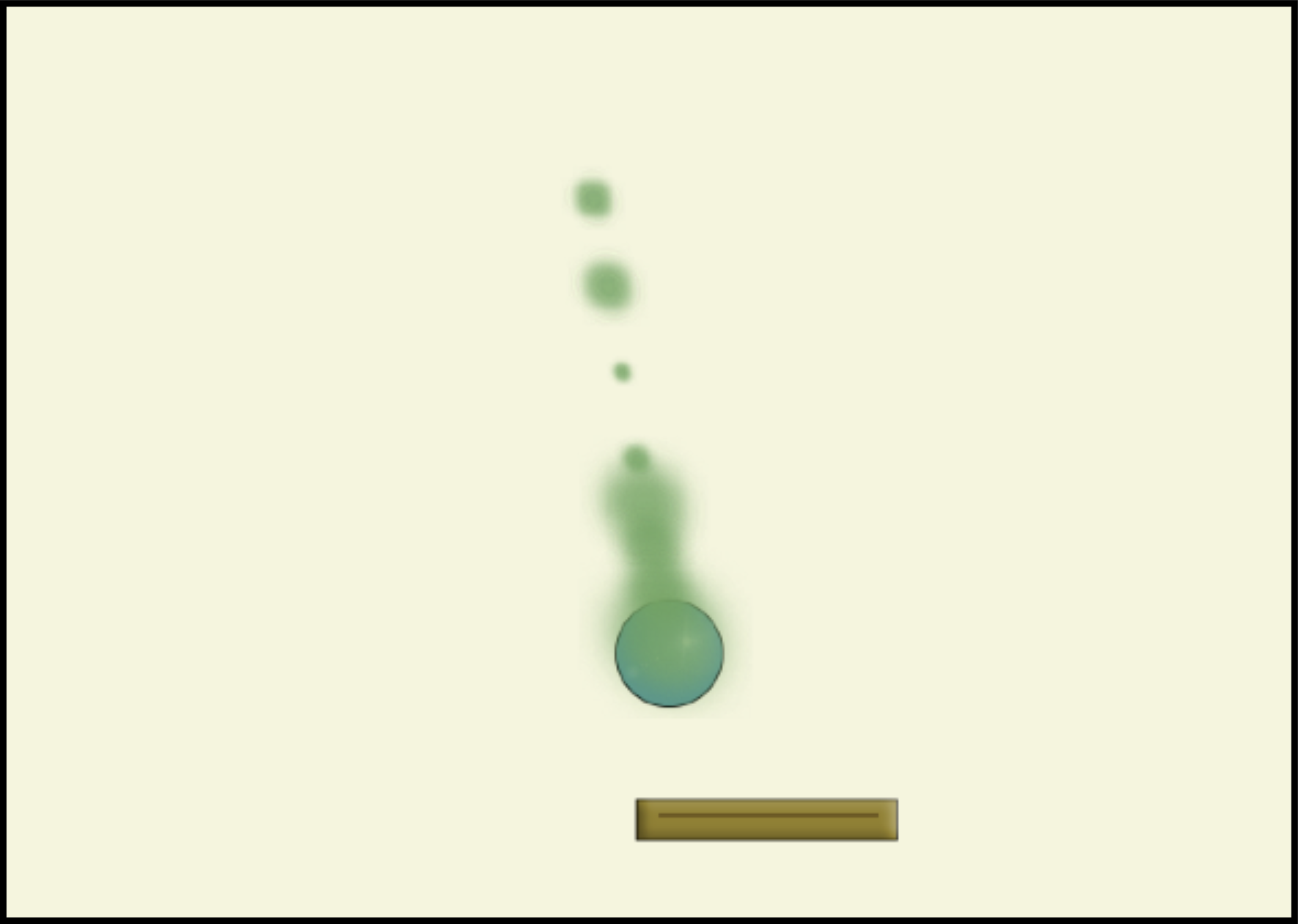 In some games, it is not only the functionality that matters, but also the visuals: What does it look like? How nice are the graphics?
In addition to just making and choosing nice graphics for your projects, you can also implement visual effects. This project shows an example: it is called smoke, and it demonstrates a smoke effect. We start with the breakout project we have seen earlier, but now we add an effect of green smoke to the ball. It makes no difference to the game play, but it looks nice.