Chapter 3. Working with functions
In the previous chapter, we have jumped straight into the development of our first project – an animated game. Along the way, we encountered a series of Python statements. We shall now look at these statements in more detail and experiment with them a bit more, before we go on with completing our game.
Of the statements we have seen so far, the function call is the most fundamental: it allows us to use many different bits of functionality that Python provides, and it is essential for any kind of programming. In this chapter, we will gain a fuller understanding of function calls – how to use them, and how to find out what functions do.
3.1. Function calls
We have seen function calls a couple of times now. For example, we have seen the call

and the call

In each case, we call, or invoke, an existing function to get it to do some task for us (setting the background colour, in this case, or setting the pace of the loop.)
In general, a function call always has the format
function-name ( parameters )
The function name specifies the name of the function we wish to call, and the parameters provide some more information to execute the call. Both functions above have one parameter, but a function can have more than one parameter, or none at all, indicating that no further information is required. If a function does not have any parameters, then we still write the parentheses. We just write nothing in between. For example

calls a function called "stop" that has no parameters. It is the presence of the round brackets (also known as parentheses) that identifies this statement as a function call.
To practice with function calls, we will now use another project: fireworks.
Exercise 3.1 Open the fireworks project from the Chapter 3 book projects. Run the project. What do you observe?
If you have completed the exercise above, you will have seen that this project includes some code, but does very little when we run it. In fact, you have to look very carefully to notice any effect at all: It sets the background of the graphics world to a dark blue colour (which is not so different from the default black), and does nothing else.
This project lets us create a fireworks display. It offers us functions to place some firework rockets into the world, and then ignite them to set them off. At the moment, nothing much happens because the project does not place any fireworks into the world.
Let us look at the program code that is executed when we run this project. It is the code in the "My code" section of your project:
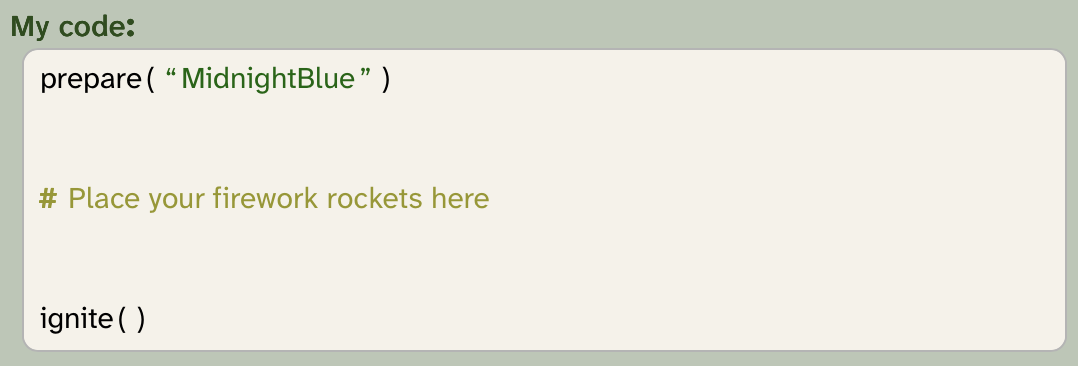
We can see two method calls and one comment. The method calls, in this order, prepare the project to be ready (including setting of the background colour) and ignite the fireworks. In the middle, we see a comment that tells us where in our code we should place our firework rockets.
A comment always starts with the symbol #, and continues with some text. The comment is ignored by the Python system; it is here only for a human reader to give us a hint. We can insert a comment into our program by adding a comment frame (the quickest way to do this is to just type #).
 A comment is a frame that shows text for the human reader(s) of the program. It is ignored by the Python system.
We would now like to start creating a fireworks display by placing some rockets into our world, and then igniting them.
Exercise 3.2 Delete the comment frame from your program. In its place, insert a function call frame for a function named place_rocket. As a parameter, you can either use a colour name, like this:

Alternatively, with the cursor in the parameter slot, click on the "Colour picker" option on the right (or type space c) to bring up a colour picker. This lets you choose a colour interactively and insert it into your function call:

Run your program to see what it looks like.
 A quick way to insert a function call frame is to type
 Ctrl-space when the frame cursor is focussed. This will insert a function call frame and bring up the code completion dialogue at the same time.
If all went well, you should now see a single fireworks rocket being fired into the night sky. The program, as it is now, prepares some internals to get the fireworks ready, places one rocket into the world, and then ignites it.
This is nice enough so far, and we could now go on to make our fireworks more interesting by adding more rockets. But we are running into a fundamental question: How do we actually know what methods are available? What are their names, what do they do, and how do we call them?
3.2. Reading function definitions
The three functions we are calling here, prepare(), place_rocket() and ignite(), are all defined further up in our own project. We can see the definition of these functions in the "Definitions" section:
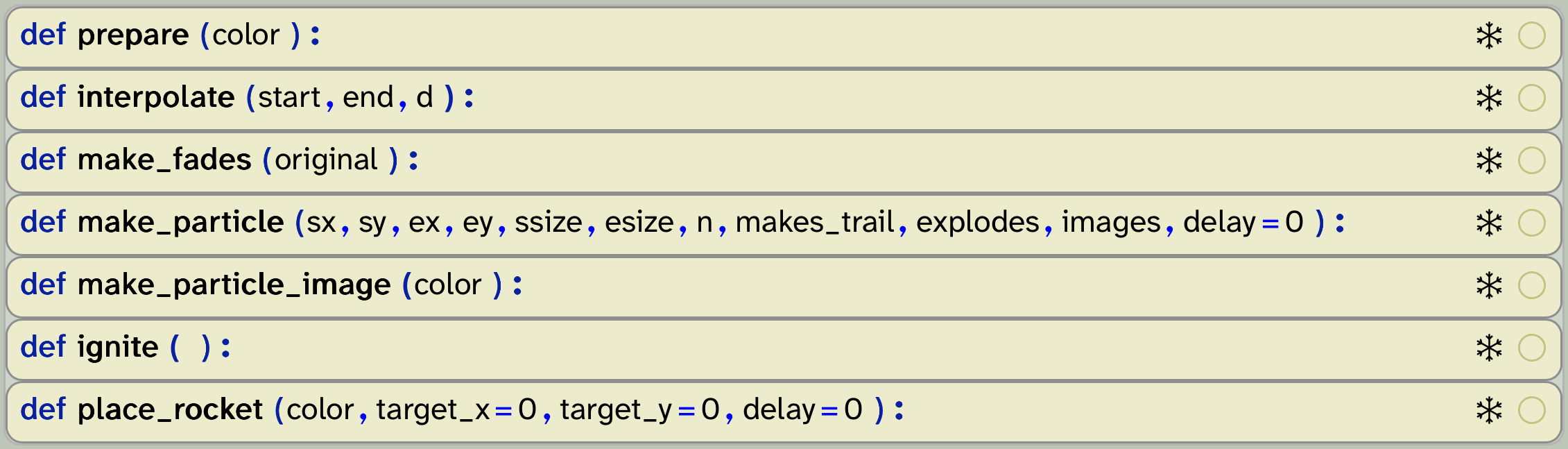
This list shows us what functions we have available to call in our project, what their names are (in bold), and what parameters they expect (in the parentheses). They all start with the word def, which is short for define and is how Python indicates a function definition.
We can, for example, see that there is a function called ignite. The fact that it shows a pair of parentheses after the method name, with nothing in between, tells us that this method expects no parameters. This matches the method call in our code section, where we invoke this method without passing a parameter, like this:

If we wanted to find out more about what this method does, we can unfold its definition. This is done by clicking on the small circle outline at the far right of the function definition frame. Once we do so, the function comment is folded out, and we can see some information about this function:

You can fold and unfold function definitions by clicking on the small circle outline in the top right corner of the function definition frame.
Let us now look at another function: prepare(). Its definition looks like this:

Again, the def keyword tells us that we are looking at the definition of a function, the next word is the name of the function ("prepare"), followed by a pair of parentheses. This time, however, there is a word within the parentheses (color). This tells us that this function expects one parameter when it is invoked, and this parameter is called "color".
As before, we can unfold the function definition to see a function comment that gives us some more information:
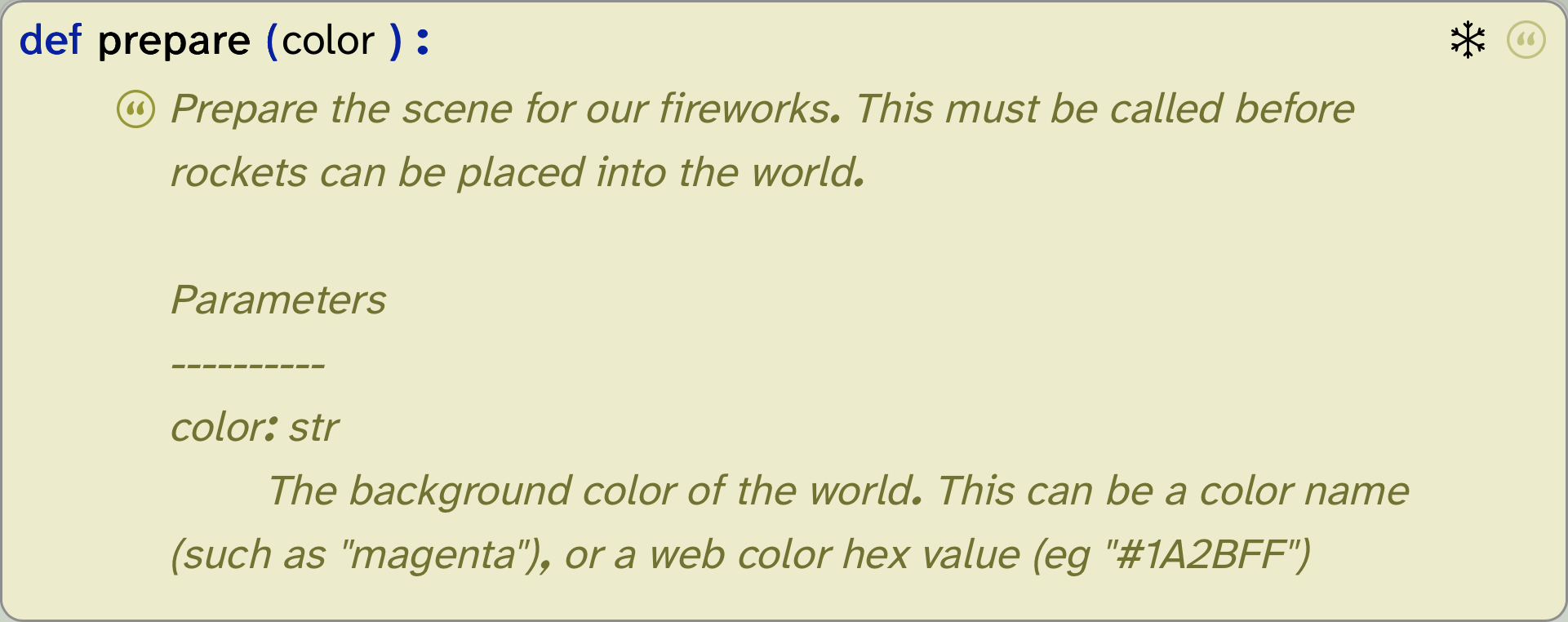
The comment first tells us what this function does, and then, crucially, gives us more information about the expected parameter. Function comments are often formatted like this: They include general information about the purpose of the function, and then some information about each parameter (there may be more than one).
The parameter information starts with the line
color : str
This line tells us the type of the parameter.
The type of a parameter tells us what kind of information is expected here. Python uses several different data types to distinguish different kinds of data. These include, for example, text, whole numbers, decimal numbers or boolean (true/false) values. We will explain these types more, later in this chapter.
Internally, each type of data is handled differently, so the Python system will always keep track of what type of data it is currently working with, and we often have to be aware of this type.
 Colours in Strype You may wonder why we were able to insert a colour directly from the colour picker when the parameter type is expected to be a string. The reason is that colours are internally always saved as strings. Each colour has a hex code – a string representation encoding the colour value. It may look like this:
 "#39efe7". You can see this code in the colour picker. If you insert a string with a hex code into Strype, it shows you the colour for convenience, but internally the data is stored as a string. Thus, colours in Strype are actually strings.
All data in Python has a type. This distinguishes different kinds of data, such as text, numbers and boolean values.
In our example above, it shows the name of the parameter (color), a colon, and then the term "str". "str" is short for "string", and it means that this variable expects a segment of text (such as some characters, a word or a sentence).
The data type string is used to store text, such as a word or a sentence. It is often abbreviated to "str". When we specify string values, we always write them in quotes, "like this".
The parameter information in the comment of the prepare function tells us that we should supply a parameter that is a string, and then tells us a bit more about what this string should contain (a colour name or value). Thus, when we call the function, we supply a value for this parameter (in our case, we used the name "MidnightBlue").
When we write string values in Python, we must always enclose them in quotes. Python allows us to use either double quotes or single quotes:

In this book, we will usually use double quotes for strings.
When we write a function call, the call must match the function definition. If the function definition says that it expects one parameter of type string, then the function call must provide a parameter of type string. Let us look at this situation again in context. In Figure 3.7, we can see that the function definition states that the name of the function is prepare, and it expects a parameter named color. The parameter definition in the function definition is called the formal parameter – it tells us what is expected.
The function call then uses the function name to invoke the function, and it provides an actual parameter – that is, a value for the expected parameter.
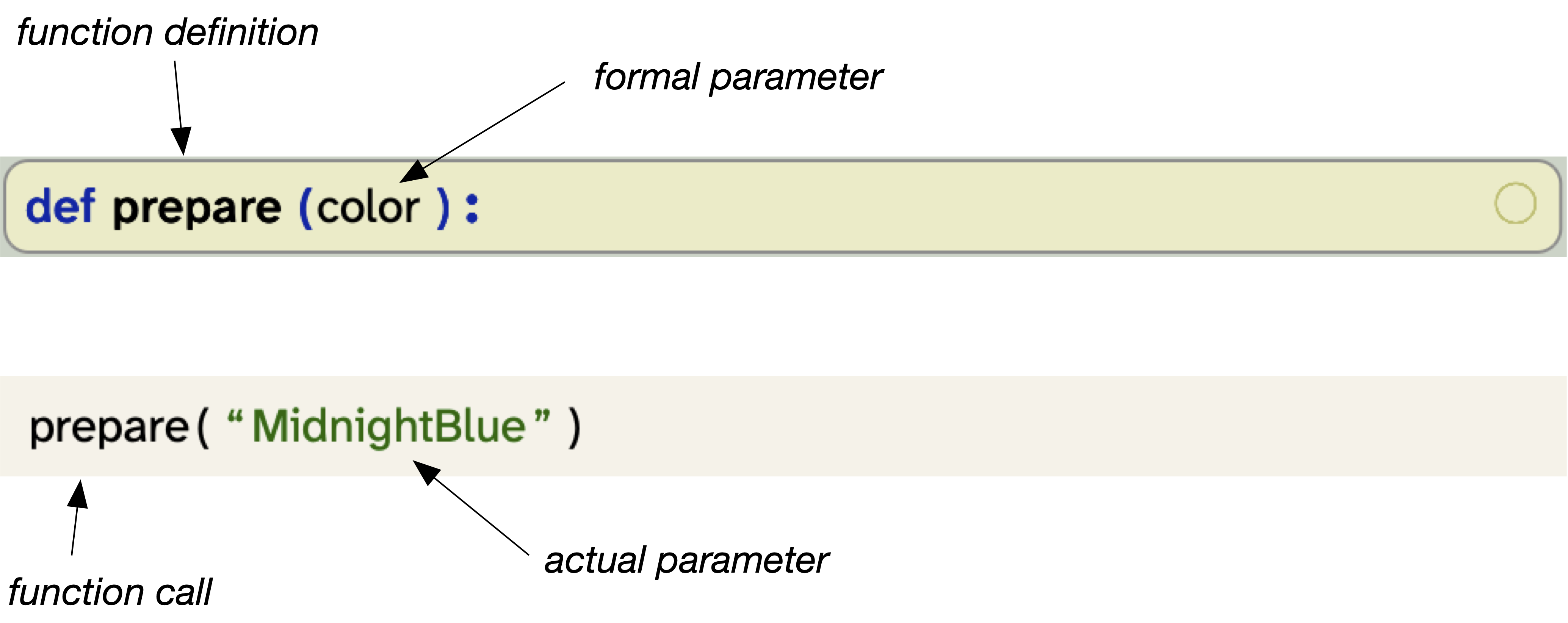
The number and type of the actual parameters in a function call must match the number and type of the formal parameters specified in a function definition.
Exercise 3.3 Change the actual parameter in the call to the prepare function to another colour value. Run your program to see the different background colour.
Exercise 3.4 Remove the quotes from the colour name in your function call. Run your program. What do you observe? (Afterwards, fix the problem again.)
We use the terms formal parameter for the declared parameter in the function definition, and actual parameter for the value passed in with the function call. In other books you will sometimes see the terms parameter and argument instead. In this usage, the argument is the actual parameter, and the formal parameter is just called parameter.
In this book, we prefer the formal/actual parameter terms, since the stand-alone term "parameter" can be ambiguous.
3.3. Optional parameters
Let us now look back at the call to the place_rocket function which we added in an exercise above.
Exercise 3.5 Find the function definition for the place_rocket function which we used earlier. How many parameters does it have?
Exercise 3.6 What do you notice about the parameter definitions that is different from what we have seen before?
Exercise 3.7 What do you think the parameters are used for? Try to find out. (Remember that you can unfold the function definition.)
If you have completed the exercises above, you will have noticed that the number of parameters in the place_rocket function call does not match the number of formal parameters in its definition. So what is going on here?
To invoke the function, we have used the call
Looking at the definition of the function, we can see that it is

The new (and important) construct here is the =0 specification used for some of the formal parameters. This is called a default value. If a parameter has a default value, then we can leave out the actual parameter in our method call, and the default value will be used for the parameter in this case. Therefore, these two calls

achieve exactly the same thing, since the values used in the second call are exactly the same as the default values. We can, however, use values different from the defaults for the parameters. If we do, these values are used instead of the defaults.
Function definitions may include default values for parameters. If they do, then we do not need to provide an actual parameter for this value; the default will be used instead.
The following calls are all valid:
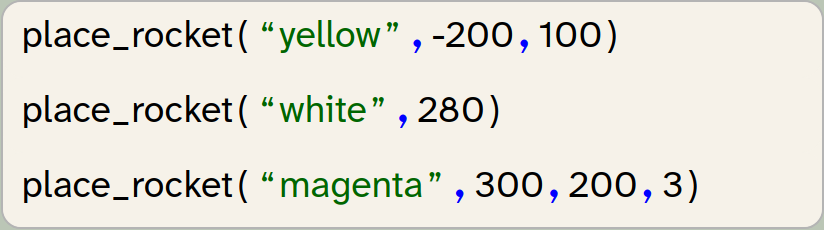
Here you can see that we do not have to supply all of the values at the same time: We can override some of the defaults with different values, while leaving the later parameters to their defaults.
If we provide only some values for the parameters, but not all, the actual values are assigned to the parameters in the order of their definitions. So if we provide only one number after the colour name, it will be assigned to the target_x parameter, while the remaining two parameters use their defaults.
But what if we want to provide a value for the delay, and leave the target_x and target_y parameters to their defaults? In that case, we can specify the formal parameter name in the function call, like this:

In this case, the two middle parameters use their default values, while the color and delay parameters receive their values from the function call.
You may have worked out by now that the two middle parameters (target_x and target_y) specify the location in the world area the rocket should aim at (using the coordinate system shown in Figure 1.6), while the delay parameter specifies a delay after igniting until the rocket should fire.
Experiment with this yourself.
Exercise 3.8 Add some more rockets to your fireworks. Make them explode in different areas of the sky.
Exercise 3.9 Add some rockets that use a delay after igniting, so that not all rockets fire at the same time. (The delay value is specified in seconds.)
Exercise 3.10 Create a fireworks show that uses several rockets. It should use at least four different colours. It should also use symmetrical pairs of rockets, where two rockets of the same colour are shot to the right and left of centre, at the same angle from the vertical.
Freezing functions: If you look carefully at the function definitions in the fireworks project, you see a little snowflake symbol towards the right of the function definition frame. This means that the function definition is frozen. A function is usually frozen if it should not be changed as part of the work in this project. You can freeze or unfreeze a function using the frame’s context menu (mouse right-click).
When a function is frozen, its implementation is hidden, and folding/unfolding alternates between showing the function comment, or showing only the function header. When it is unfrozen, the folding cycles through three states: header only, header with comment, full implementation.
If you provide projects for others (such as a teacher making starter projects for their students), you can freeze a function as a signal that this function implementation should not need change, and that the user may not need to understand the implementation of this function. The function is here just to be called as it is.
If you are a learner working with a project, the frozen function tells you that you can use this function without being expected to understand how it works internally. (If you are curious, you can of course unfreeze a function and look at its implementation, but you should not need to.)
3.4. Data types: string, int and float
The first data type we have encountered above was str, which is short for "string". We have seen that the values for this type are snippets of text, written in quotes: "This is a string".
If you paid attention when you did the exercises above, you may have noticed that the comment for the place_rocket function specified that the type of the last three parameters is float. "float" is short for "floating point number", and it means that the value for this parameter should be a number that may include a decimal point. 3.14 and 0.0001 and 42.0 are all floating point numbers. It is allowed to provide numbers without a decimal point: 128, for example, will just be treated the same way as 128.0.
There is a third data type that is worth mentioning at this point, because we will encounter it very soon: int. "int" is short for "integer", which means a whole number. If a parameter type is int, then we have to supply a number, but this number cannot have a decimal point. Only whole numbers are allowed, such as 1001, -42, or 0.
The three most common data types are str, int and float.
str (string) is used to store text, int (integer) is used to store whole numbers, and float (floating point number) is used to store decimal numbers.
Some examples are shown in the table below.
| type name | full name | used for | examples |
|---|---|---|---|
str |
string |
text |
|
int |
integer |
whole numbers |
|
float |
floating point |
decimal numbers |
|
Exercise 3.11 In your fireworks display, use floating point numbers (numbers with a decimal point) for some of your delay values. For example, delay a rocket by 4.75 seconds.
After doing these exercises, you might like to compare your project to the fireworks-finished example, which is an implementation of these exercises.
3.5. Summary
In this chapter, we have investigated and experimented with the most fundamental of Python constructs: the function call. We have learned how to read function headers to work out how we call a function. We have seen that functions can take parameters (which can include optional parameters), and that the types of the formal and actual parameters must match. You should now be able to work out how to correctly call a function when you see the function’s header.

-
A comment is a frame that shows text for the human reader(s) of the program. It is ignored by the Python system.
-
All data in Python has a type. This distinguishes different kinds of data, such as text, numbers and boolean values.
-
The data type string is used to store text, such as a word or a sentence. It is often abbreviated to "str". When we specify string values, we always write them in quotes, "like this".
-
The number and type of the actual parameters in a function call must match the number and type of the formal parameters specified in a function definition.
-
Function definitions may include default values for parameters. If they do, then we do not need to provide an actual parameter for this value; the default will be used instead.
-
The three most common data types are str, int and float. str (string) is used to store text, int (integer) is used to store whole numbers, and float (floating point number) is used to store decimal numbers.

Drum
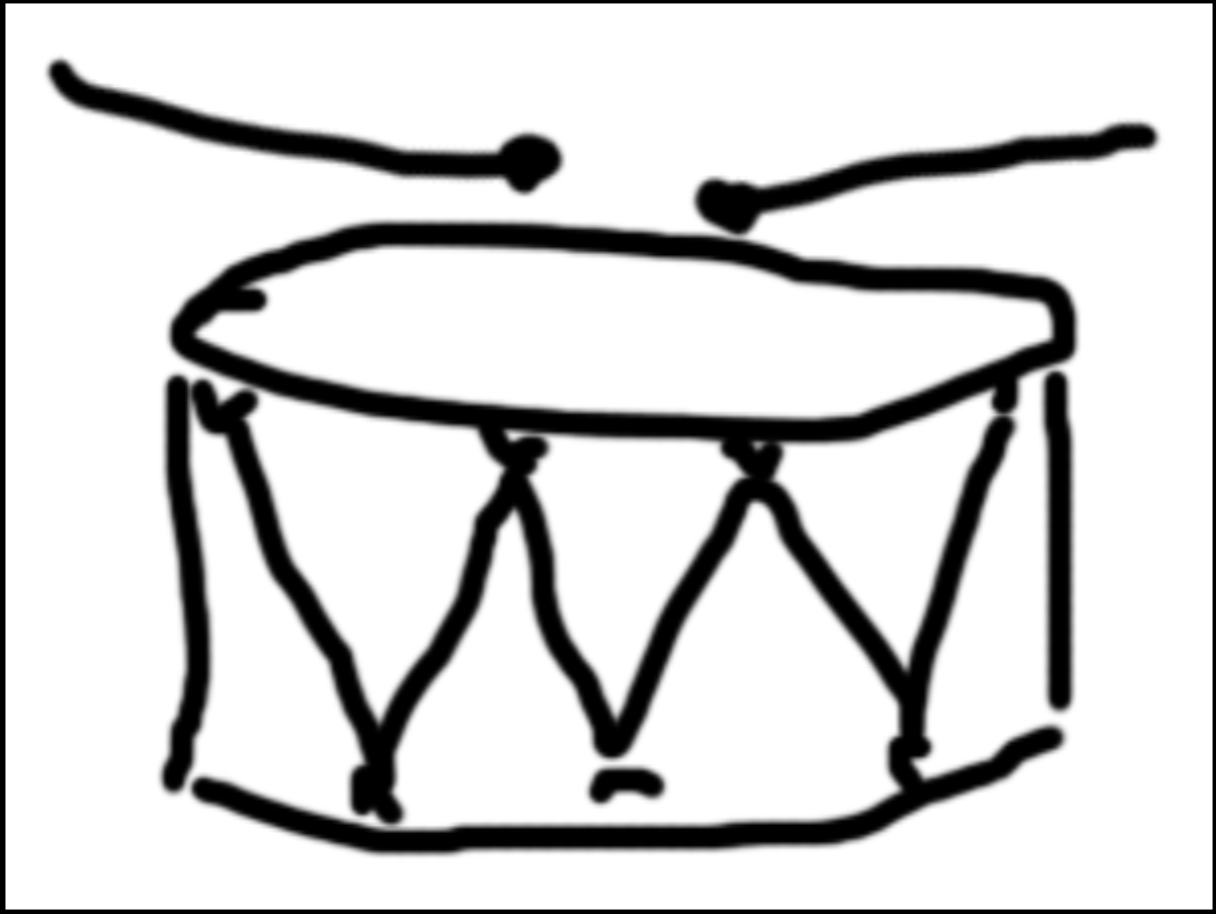 This is a very simple project that lets you bang a drum. Use your left/right cursor keys to play.
This project shows you some controlled movement (moving the drum sticks) and the use of functions to move either stick. It also shows you how to play a sound, which we will discuss in more detail later in this book. Maybe you can add another instrument?